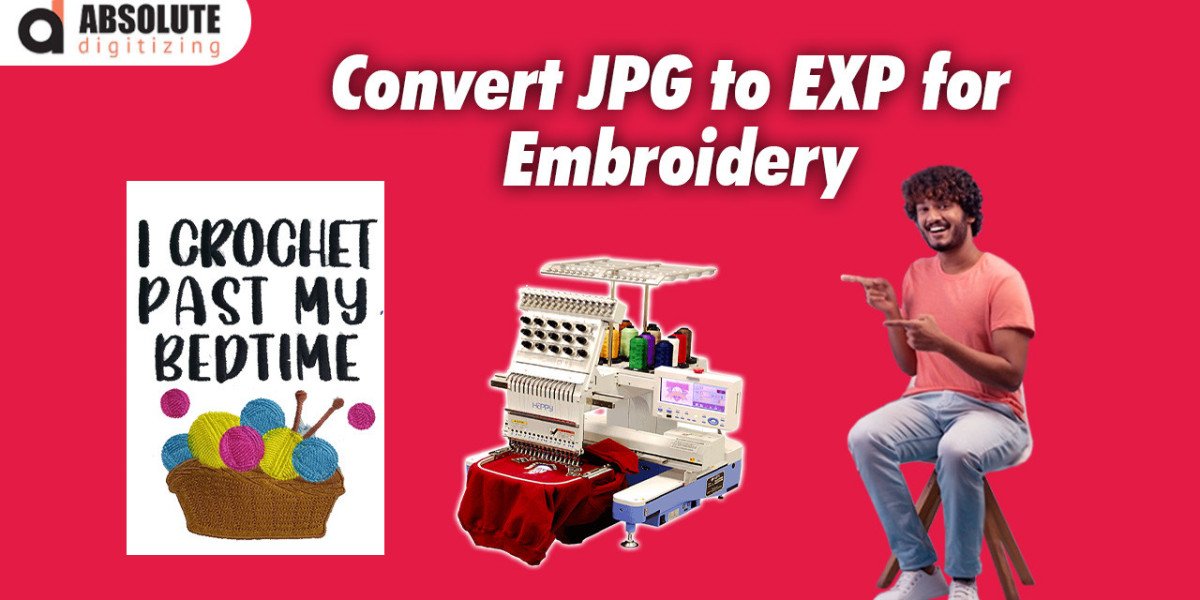

How to Convert JPG to EXP for Wilcom & Tajima Users
If you run Wilcom EmbroideryStudio or a Tajima DG/ML by Pulse machine, you already own two of the most powerful digitizing platforms on earth. Yet every week, someone in the Facebook groups posts a blurry, jagged mess and asks, “Why does my EXP look terrible?” Nine times out of ten the answer is simple: they skipped the real workflow and tried a shady online converter. Spoiler — there is no magic “upload JPG, download perfect EXP” button. There is, however, a bulletproof method that Wilcom and Tajima users rely on to turn even mediocre JPGs into clean, production-ready EXP files that stitch like butter on Bernina, Bernette, and older Melco machines. Here’s exactly how the pros do it, step by step, so you can stop guessing and start shipping flawless work. Let’s dive into how to convert JPG to EXP the right way.
Step 1: Fix the JPG Before It Touches Your Software
Open the image in Photoshop, Affinity, or free Photopea and do these four things in order:
- Upscale with an AI tool if it’s tiny (Topaz Gigapixel or Photoshop Super Resolution).
- Crank Levels or Curves until blacks are black and whites are white.
- Posterize or Cutout filter to 6–12 colors max.
- Remove the background completely (Select → Subject + Refine Edge, or remove.bg for speed).
A clean canvas takes three minutes and prevents 90 % of digitizing headaches.
Step 2: Vectorize — Yes, Even If You Have Wilcom
Wilcom’s CorelDRAW module and Pulse’s vector tools are excellent, but most pros still pre-vectorize in Adobe Illustrator or Inkscape first. Why? Because a proper SVG gives you perfectly smooth nodes before a single stitch is generated. Trace the cleaned JPG (Image Trace → High Fidelity Photo in Illustrator, or Trace Bitmap → Colors in Inkscape). Expand, ungroup, simplify paths, and delete stray specks. Save as plain SVG. This file becomes your golden source.
Step 3: Import the Right Way
Wilcom users: File → Import Artwork → choose your SVG (not the JPG). Tajima Pulse users: File → Import Vector → same deal.
Both programs will ask if you want to use the vectors for auto-digitizing — say yes. The software instantly recognizes every closed shape instead of guessing pixels.
Step 4: Let Auto-Digitizing Do the Heavy Lifting
In Wilcom: Click Auto Digitize → Smart Design or PhotoFlash (for photo-style images). In Tajima DG: Click the Auto-Punch icon or Vector-Based Embroidery.
Both will spit out objects in seconds. Immediately switch to “TrueView” (Wilcom) or “3D view” (Pulse) to see what you’re actually about to stitch.
Step 5: Clean Up Like a Pro
Auto tools are smart, but never perfect. Zoom to 400 % and fix these usual suspects:
- Change running stitches wider than 1.5 mm to satin columns.
- Add complex fill with steerable underlay to large areas.
- Set pull compensation to 0.3–0.45 mm (Bernina EXP loves a little extra overlap).
- Density 0.40–0.45 mm for cotton, 0.50–0.55 mm for towels.
- Shorten stitch length in tight curves (2.5–3.0 mm max).
Step 6: Match Real Thread Colors
Open the Bernina/Isacord thread chart inside Wilcom (Thread Colors → Bernina) or Pulse (Thread Inventory → Isacord/Madeira). Click each color block and pick the exact thread you stock. The resulting EXP file will display the correct thread name on any Bernina screen instead of “Color 12.”
Step 7: Optimize the Path Like You’re Getting Paid by the Minute
Production shops live or die by stitch count. In Wilcom, use Branching or Smart Sequencing. In Pulse, use the Optimize Entry/Exit tool. Combine same-color objects across the design, even if they don’t touch visually. Kill unnecessary trims — Bernina machines handle long jumps beautifully. A clean path can drop a 40,000-stitch design to 28,000 without losing quality.
Step 8: Save the Correct EXP Version
Wilcom: File → Save As → EXP → choose v8, v9, v10, or v11 depending on your customer’s machine (most current Berninas take v10–v11). Pulse: File → Save As → EXP → same version choices.
Higher versions store more decimal-point precision, which means rounder circles and cleaner satins.
Step 9: Test Stitch on Scrap First
Every pro does this, every time. Hoop the same fabric, use the same stabilizer, and run the design. Watch for registration shifts, thread breaks, or shiny spots where density is too high. Fix, re-save, re-test. Ten minutes now saves hours of unpicking later.
Bonus Speed Tricks for Wilcom & Tajima Users
- Create a master template (.EMB or .PXF) with your favorite underlay, density, and pull-comp already set. Start every job from the template.
- Use Wilcom’s Color Blending or Tajima’s Gradient Fill for watercolor-style pumpkins that still stitch fast.
- Batch convert: Drop 50 cleaned SVGs into Wilcom’s Batch Convert folder or Pulse’s Multi-File Converter and let it run overnight.
Common Mistakes That Waste Thread and Sanity
- Digitizing straight from a 300-pixel JPG without vectorizing.
- Forgetting to remap colors to Bernina threads.
- Leaving auto underlay turned off (letters sink on knits).
- Exporting to generic DST instead of native EXP (loses Bernina-specific data).
Wrap-Up
Converting a JPG to a flawless EXP file isn’t about hunting for a secret website. It’s about feeding Wilcom or Tajima the cleanest possible artwork, letting the software do the grunt work, then refining like the design is going on the front of a $300 letterman jacket. Follow these steps and your Bernina customers will start asking who your “new digitizer” is (spoiler: it’s still you, just smarter). So fire up Corel or Illustrator, clean that next JPG, and start pumping out EXP files that stitch so clean you’ll want to sign them. Happy punching!